
Export image and data
Grafieks Cloud provides export options that allow you to save dashboards and reports in common file formats for sharing, presentations, offline review, or further analysis.
There are two types of exports:
- Dashboard export – Export the dashboard as a PDF, PNG, or JPG image.
- Report export – Export the report as a PDF, PNG, or JPEG image, or export the report data as an Excel or CSV file.
Export a Dashboard
Section titled “Export a Dashboard”You can export the complete dashboard in a presentation-friendly format.
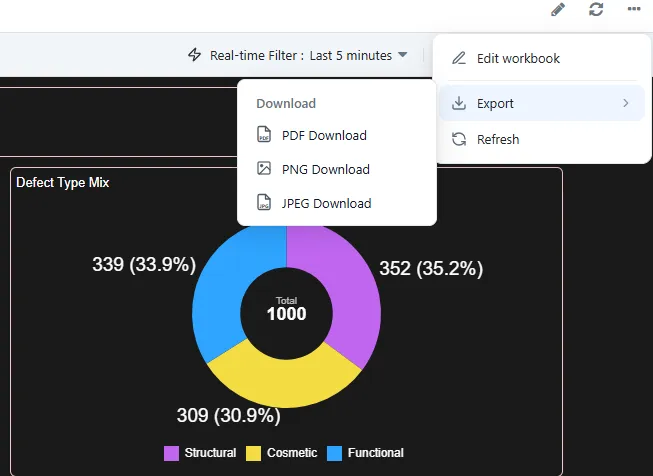
You can export the dashboard in the following formats
- PDF – Saves the dashboard as a PDF document.
- PNG – Saves the dashboard as a PNG image.
- JPG – Saves the dashboard as a JPG image.
Steps:
- Open the dashboard you want to export.
- Open the More options menu (three dots in the top right).
- Select Export.
- Under Download, select the required format:
- PDF Download
- PNG Download
- JPEG Download
- The dashboard is exported in the selected format.
Export a Report
Section titled “Export a Report”Reports provide two types of export: visual exports and data exports.
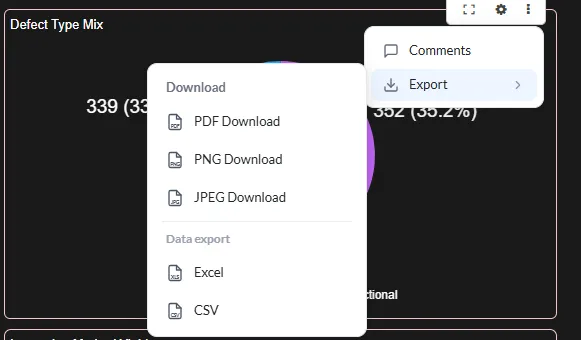
Export the Report as a File
Section titled “Export the Report as a File”You can export the report itself in the following formats:
- PDF – Export the report as a PDF document.
- PNG – Export the report as a PNG image.
- JPEG – Export the report as a JPEG image.
Steps:
- Open the dashboard and hover over the report you want to export.
- Open the More options menu (three dots in the top right).
- Select Export.
- Under Download, choose:
- PDF Download
- PNG Download
- JPEG Download
- The report is exported in the selected format.
Export Report Data
Section titled “Export Report Data”If you need to work with the underlying report data, you can export it as an Excel or CSV file.
Available formats for report data:
- Excel – Exports the report data in Excel format for further analysis, filtering, or manipulation.
- CSV – Exports the report data in CSV format for use with spreadsheets, databases, and other data-analysis tools.
Steps:
- Open the dashboard and hover over the report you want to export.
- Open the More options menu.
- Select Export.
- Under Data export, select:
- Excel
- CSV
- The report data is exported in the selected format.
Which Export Should I Use?
Section titled “Which Export Should I Use?”| Requirement | Recommended export |
|---|---|
| Share or print a dashboard | |
| Add a dashboard image to a presentation | PNG or JPG |
| Share or print a report | |
| Use a report as an image | PNG or JPEG |
| Analyze report data in Excel | Excel |
| Import report data into another system | CSV |
Dashboard vs. Report Export
Section titled “Dashboard vs. Report Export”| Feature | Dashboard | Report |
|---|---|---|
| ✓ | ✓ | |
| PNG | ✓ | ✓ |
| JPG/JPEG | ✓ | ✓ |
| Excel data export | - | ✓ |
| CSV data export | - | ✓ |
Important Notes
Section titled “Important Notes”- PDF, PNG, and JPG/JPEG exports are intended for sharing or viewing the dashboard/report.
- Excel and CSV exports are intended for working with report data.
- The available export options depend on whether you are working with a dashboard or a report.
- Select the format that best matches your intended use: visual sharing or data analysis.
Quick Reference
Section titled “Quick Reference”Dashboard:
More options → Export → Download → PDF / PNG / JPEGReport:
More options → Export → Download → PDF / PNG / JPEGReport data:
More options → Export → Data export → Excel / CSV